
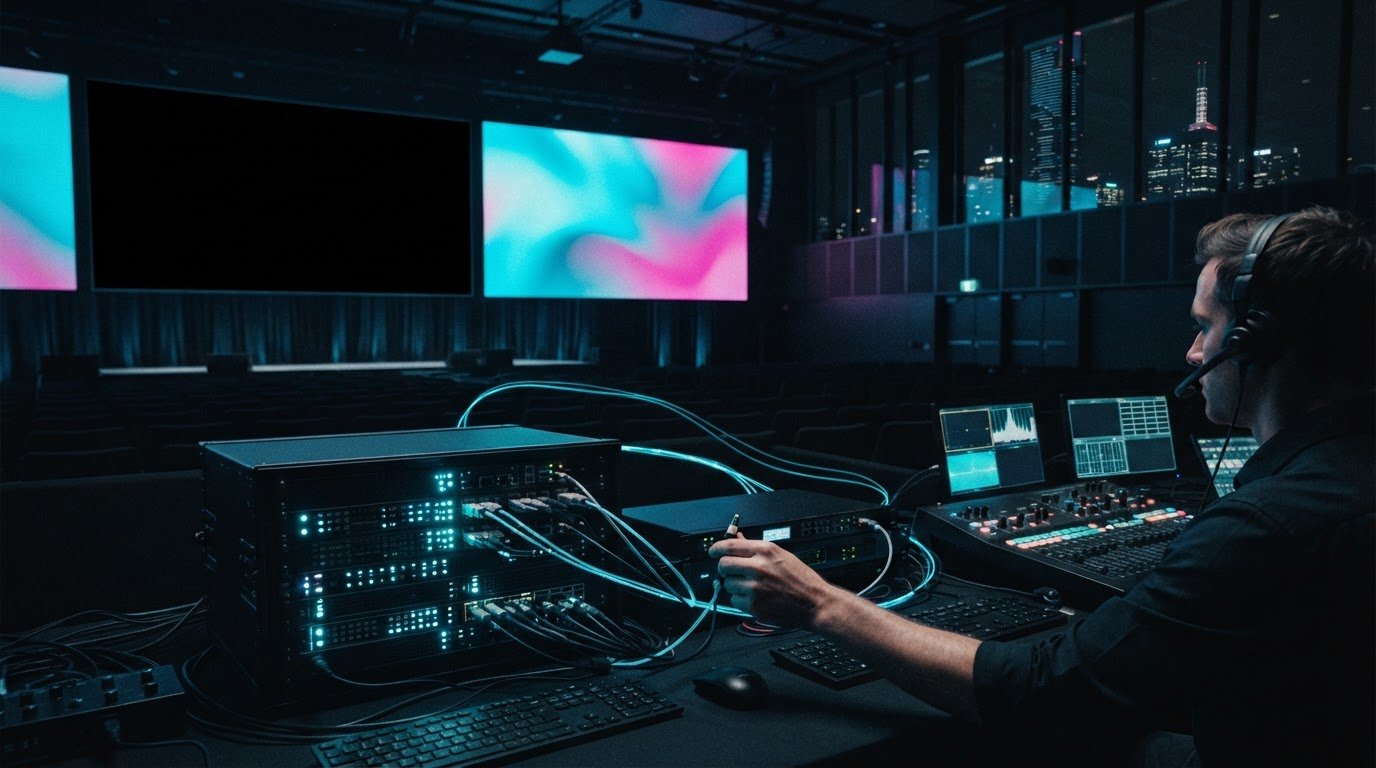
Troubleshooting Event Video Playback: A Practical Guide

The room is ready, the speaker is introduced, and the opening video stays black. Troubleshooting video playback issues at events can feel like a race against the audience’s patience, but changing equipment at random can add confusion instead of restoring the picture.

A misplaced image, stretched format or frozen screen doesn’t automatically mean the file has failed. The fault could sit anywhere along the playback chain, from the source device and video processor to the connection or display. A calm, methodical check helps pinpoint the cause and limit disruption while the programme continues.

This guide explains how to trace common playback faults, check content and signal settings, and restore planned visuals with precision. You’ll also learn how pre-event testing and a clear recovery plan can reduce risk before guests arrive. With technical direction and careful signal checks, NextGen AV helps Melbourne event teams manage complexity behind the scenes and keep attention on the experience in the room.

Key Takeaways

  • Record what appears on screen and when the fault occurs to give your troubleshooting a clear starting point.
  • Trace the playback route from media file to display, changing one setting or connection at a time.
  • Use the symptom to narrow down the likely fault area and decide what to check or escalate next.
  • Keep the programme moving with a planned holding slide or presenter-led transition while the team checks the affected route.
  • Effective troubleshooting video playback issues at events starts before doors open, with clear file handover, cue order, rehearsal and assigned operator roles.

Troubleshooting video playback issues at events: start with the symptoms

A black screen, frozen image or missing video can each point to a different fault. Stay calm and observe before changing settings or swapping equipment. Note exactly what appears on screen, whether the problem starts immediately or part-way through playback, and whether anything changes when the video is cued again. These details give the playback operator a useful starting point and help avoid changes that obscure the original cause.

The event playback signal chain is the route a video takes from its source file and playback device, through settings, connections and a video processor, to the final display. A fault can arise at any point along that route, so the symptom helps narrow down where to investigate.

What does the screen behaviour tell you?

For a black screen, first check whether the display is powered and what it shows. An input or signal message suggests the screen is active but may not be receiving the expected feed. A completely dark display calls for a different check. Record any message rather than guessing at its meaning.

If playback freezes or stutters, establish whether the file itself is paused or the playback device is struggling to keep it moving. Check whether the playback controls respond and whether the same issue appears at the same point when the clip is cued again. Visible video with no sound is a separate audio-path symptom, not proof that the video signal has failed. Keeping the observations separate helps the technical team direct checks to the right system.

For streamed content, the platform and delivery method add another part of the route to consider. This overview of Online Video Platform (OVP) technology provides background on how online platforms deliver video.

What changed just before playback failed?

Think back to the last successful cue. Was the source device, cable, input selection, content file or display configuration changed? Even a small change can help locate the fault, particularly if the issue began straight afterwards. Record what changed and when, without making several new adjustments at once.

Next, establish the scope: does the fault affect one screen, one input or every display? A single affected screen can point towards its connection or display route, while a fault across all displays may call for attention further upstream. These are clues, not conclusions. The next section traces the route systematically.

Pass the observations to the person managing event playback in a calm, concise handover: what the audience sees, when it happens, which screens are affected and what changed beforehand. This symptom-led approach makes troubleshooting video playback issues at events more controlled and gives the operator a clearer path to restore the planned visuals with minimal disruption.

Trace the event video signal from media source to display

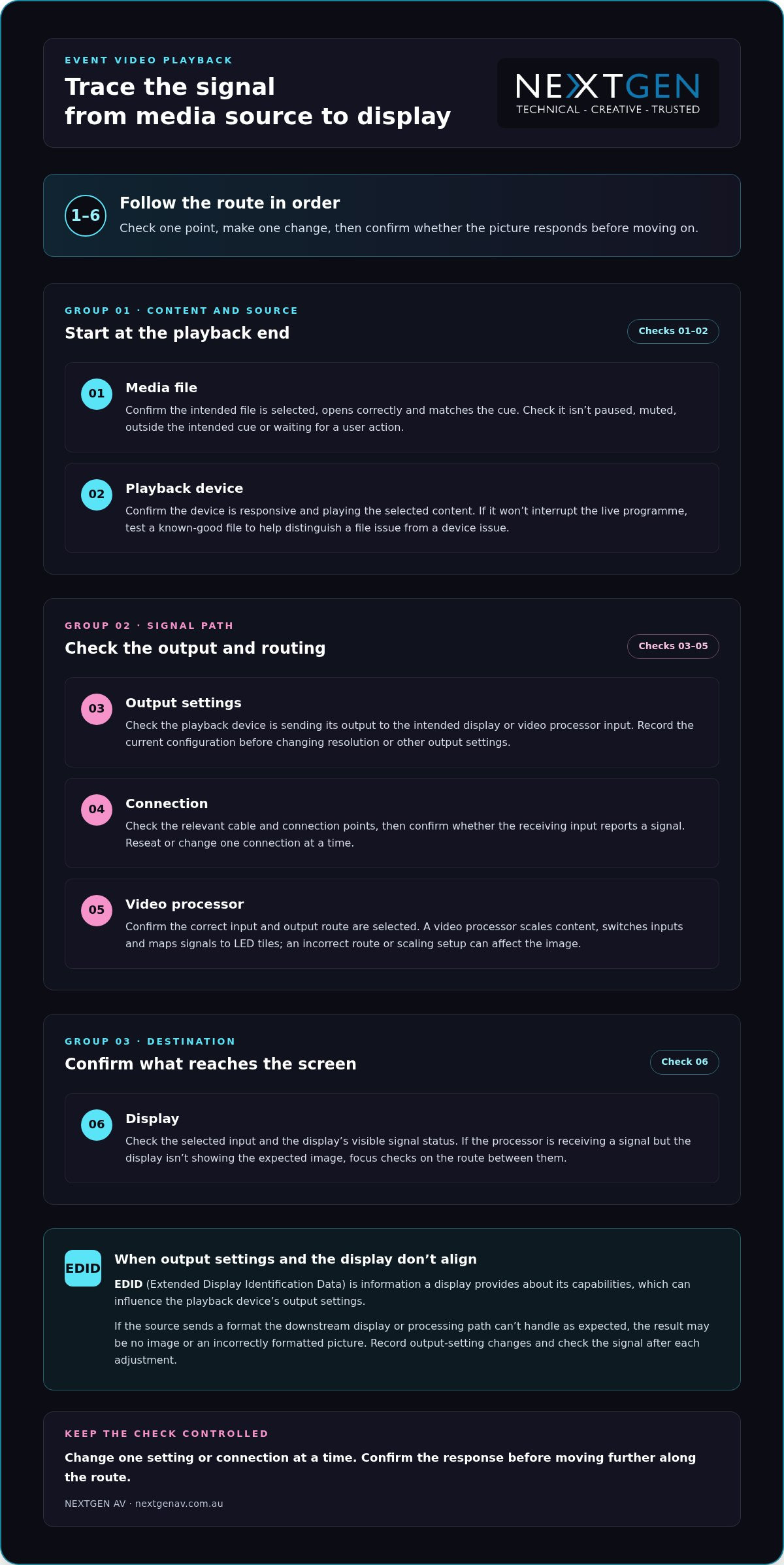
Once you’ve identified where the fault appears, trace the signal route in order. This keeps troubleshooting video playback issues at events controlled: check one point, make one change, then confirm whether the picture responds before moving on. Avoid changing several settings at once, or you may lose the clue that identifies the cause.

  1. Media file: Confirm the intended file is selected, opens correctly and matches the cue. Check that it isn’t paused, muted, outside the intended cue or waiting for a user action.
  2. Playback device: Confirm the device is responsive and playing the selected content. If it can be done without interrupting the live programme, test a known-good file to help distinguish a file issue from a device issue.
  3. Output settings: Check that the playback device is sending its output to the intended display or video processor input. Avoid changing resolution or other output settings until you’ve recorded the current configuration.
  4. Connection: Check the relevant cable and connection points, then confirm whether the receiving input reports a signal. Change or reseat one connection at a time.
  5. Video processor: Confirm the correct input and output route are selected. A video processor scales content, switches inputs and maps signals to LED tiles, so an incorrect route or scaling setup can affect what appears on screen.
  6. Display: Check the selected input and the display’s visible signal status. If the processor is receiving a signal but the display isn’t showing the expected image, focus checks on the route between them.

EDID, or Extended Display Identification Data, is information a display provides about its capabilities, which can influence the playback device’s output settings. If a source sends a format the downstream display or processing path can’t handle as expected, the result may be no image or an incorrectly formatted picture. Record any output-setting changes and check the signal again after each adjustment.

Keep the route clear

For an LED wall, distinguish the signal arriving at the video processor from the image mapped across the display. This helps the operator narrow down whether to investigate the source, input selection, scaling or display route, rather than resetting the whole system. For planning considerations specific to this display type, read the guide to LED video walls for events.

A clear signal path is easier to test when technical direction and content routing are planned together. For Melbourne event teams, NextGen AV’s event technical direction brings those details into the production plan, helping keep the audience experience in focus while the team resolves the fault.

Match common playback faults to the right corrective action

Symptoms narrow the search, but they don’t prove the cause. Use the checks below to guide the next step, changing one thing at a time and recording the original setting before you adjust it. This makes troubleshooting video playback issues at events more precise and gives the playback operator a clear point for escalation.

Symptom Likely fault area First check Escalation point
No picture or a black screen Source output, selected input, connection, video processor or display Check that the display is powered, note its signal status, then confirm the source is routed to the intended input. If the input and route are correct but no signal reaches the display, have the playback operator trace the connection and processor path.
Picture is on the wrong display, cropped or incorrectly formatted Output routing, scaling, aspect ratio or processor mapping Compare the source output settings with the intended display or processor configuration. If the source is routed correctly but the image remains wrong, escalate to the person managing video processing and display mapping.
File won’t play or playback is unsupported Content file, playback device or compatibility along the signal path Confirm the intended file is selected and check whether it plays on the same device outside the live cue, if the programme allows. If a known-good file plays but the event file doesn’t, escalate for a content and playback compatibility check.
Playback freezes, stutters or drops in and out File or playback device performance, connection or signal route Check whether the issue repeats with a known-good file on the same device, and inspect the relevant connection and signal status. If it continues across files or affects more than one display, ask the technical operator to trace the shared signal route.

Check before changing settings

For a black screen or misplaced image, confirm the selected input and signal status before restarting equipment. Then verify that the source output is routed to the intended display or video processor input. If only one display is affected, compare its route with a working display where practical. That comparison can help isolate the affected path without changing the whole system.

For freezing, stuttering or an incorrect format, compare playback using a known-good file on the same device when it won’t disrupt the programme. Check the source output against the intended display and processor configuration. Don’t alter several settings at once: note the original values, test a single adjustment and confirm the result.

HDCP and EDID can affect compatibility between content sources, processing and displays, but they aren’t automatic explanations for every fault. Treat them as controlled checks: record the current configuration and involve the playback operator before making changes, particularly during a live programme. If the symptom persists after the relevant route has been checked, escalate with a concise report of what you observed and tested.
Troubleshooting Event Video Playback: A Practical Guide

Restore playback during the event without adding disruption

A live fault needs a measured response, not a flurry of resets. Repeatedly restarting devices or changing several settings at once can interrupt the cue further and make the original problem harder to identify. Keep the response coordinated: protect the programme, isolate the affected route, test one change, then confirm the picture before resuming.

Use a controlled live recovery sequence

The event lead should communicate with the presenter and playback operator before changing the programme. If the event plan allows, move to a prepared holding slide or a presenter-led transition while the operator investigates. This gives the audience a clear point of focus and creates space for a controlled check behind the scenes.

  • Protect programme flow: agree on the holding slide or transition with the presenter.
  • Identify the affected route: confirm which source, input or display is involved.
  • Test one change: use a known working source or planned alternate input if it’s available in the production setup.
  • Confirm the picture: check that the image is stable on the intended display before returning to the planned cue.

If the first adjustment doesn’t resolve the fault, pause before trying another. Tell the operator what changed and what the screen now shows. That concise handover keeps troubleshooting video playback issues at events focused on evidence, rather than adding uncertainty through untracked changes.

Plan backups before doors open

Recovery is faster when the team has rehearsed the fallback. Test the final media files on the actual playback setup during event preparation, following the planned cue order and checking the complete source-to-screen route. This can expose a file or routing issue before it reaches the audience.

Where it suits the event plan, prepare duplicate content or an alternate playback route. Make sure the operator knows which option to use and how the presenter will be briefed if the programme needs a short transition. For the wider production picture, see this guide to full-service event production.

Coordinated technical support brings playback, content cues and programme decisions together, so the team can resolve faults without losing sight of the audience experience. Talk with NextGen AV about event technical direction for a considered approach to live playback planning and support.

Prevent event video playback issues with precise production planning

The most effective response to a playback fault often begins before the venue fills. Turn troubleshooting video playback issues at events into a practical pre-show plan: agree how files are handed over, confirm cue order, test the complete route and make sure every operator knows their role. A clear escalation path means the right person can act without delaying decisions or disrupting the audience experience.

Rehearse the complete playback path in the Melbourne venue

A full signal-path rehearsal checks every handover, from the media file and playback device through connections and processor routing to each event display, before audiences arrive. Use the planned configuration in the Melbourne venue, rather than relying on a check of the file alone.

  • File handover: identify the final approved versions and make sure the playback operator can locate each one.
  • Cue order: run presentation changes and video cues in programme order with the relevant event team.
  • Source-to-screen test: confirm each final file plays through the intended device, connections, processor route and display.
  • Operator notes: record the working input, routing and agreed recovery approach for the team running playback.

Testing in sequence helps reveal handover issues, such as the correct file being available but assigned to the wrong cue, before they reach the stage.

Coordinate the people behind a seamless visual experience

Technical preparation also depends on clear responsibilities. Establish who cues content, who monitors the displays and who communicates with the event lead if a fault appears. Set out an escalation path in advance, including who makes the call to switch to an alternate source or adjust the programme. This keeps updates concise and avoids multiple people making conflicting changes.

Experienced technical direction brings the content, signal route and programme team together. NextGen AV’s technical direction and on-site production management help coordinate the details behind the scenes, so any issue is handled with precision and the event remains focused on its audience.

Make the playback plan part of the wider production process, not a last-minute equipment check. Plan your next event with NextGen AV.

Make playback reliability part of the plan

Reliable event visuals come from a clear process: read the symptoms, trace the signal from source to screen, and make one controlled change at a time. If a fault occurs live, protect the programme while the playback team checks the affected route. Before the event, test final files in the planned setup and agree on operator roles and a recovery path. That preparation makes troubleshooting video playback issues at events more manageable and helps keep attention where it belongs, on the experience in the room.

NextGen AV brings more than 30 years of industry experience to event production, managing 1,200+ events annually from a Melbourne-based warehouse and supporting events throughout Australia. With technical direction and production management coordinating the details behind the scenes, your visuals can serve the wider event with precision and confidence.

Plan your next event with NextGen AV and create a considered production plan for a seamless audience experience.

Frequently Asked Questions

Why is there no picture from my laptop at an event?

A blank screen can result from the display being on the wrong input, the laptop sending output to another screen, a connection issue or incompatible output settings. Check whether the display shows an input or signal message, then confirm the laptop’s output is routed to the intended processor or display. Note what you observe before adjusting settings. If other screens work, compare their signal routes with the affected one.

What should I check when a video freezes during an event?

First check whether playback is paused, waiting for a cue or stuck at a specific point in the file. Confirm the playback device is responding, then see whether the problem repeats with a known-good file if testing won’t interrupt the programme. If it does, the device or signal route may need attention. If not, the content file or cue may be involved. Change one thing at a time and tell the operator what you’ve tested.

Can an HDMI connection cause event video playback problems?

Yes. A loose or damaged HDMI cable, an incorrect input selection or a connection that isn’t carrying the expected signal can contribute to playback problems. Check the cable and the selected input, then confirm whether the receiving device reports a signal. If the route includes a video processor, verify that its selected input matches the connected source. Avoid changing multiple connections at once, so the team can identify which check affects the picture.

How do you troubleshoot an LED display that is showing the wrong image?

Start by confirming which source and input are selected, then check whether the source is routed to the intended display. If the issue affects one screen, compare its route with a working display where practical. For an LED wall, the video processor scales content, switches inputs and maps signals to LED tiles, so its routing or mapping may need review. Record any changes and confirm the image on the intended display before continuing.

What is EDID, and how can it affect video playback?

EDID, or Extended Display Identification Data, is information a display provides about its capabilities. That information can influence the output settings selected by a connected source, such as a laptop. If source and display settings don’t align, the image may not appear or may display in an unexpected format. Treat EDID as one possible compatibility factor, not an assumed cause. Record current settings and make controlled checks with the playback operator.

How can event organisers prevent playback issues before guests arrive?

Test the final media files using the actual playback device, connections, video processor and displays in the planned event configuration. Run presentation changes and video cues in programme order, and confirm the image reaches each intended screen. Agree who cues content, who monitors displays and who escalates a fault. For Melbourne events, a venue-based rehearsal helps the team check the complete route and document working inputs and a recovery approach before guests arrive.

What should a team do if video playback fails during a live presentation?

Protect the programme first. The event lead should coordinate with the presenter and playback operator, using a prepared holding slide or presenter-led transition if the plan allows. The operator can identify the affected route, test one controlled change and confirm the image is stable before returning to the cue. Avoid repeated restarts or several simultaneous setting changes. This measured approach to troubleshooting video playback issues at events helps limit disruption and keep the audience experience in focus.

The room is ready, the speaker is introduced, and the opening video stays black. Troubleshooting video playback issues at events can feel like a race against the audience’s patience, but changing equipment at random can add confusion instead of restoring the picture.

A misplaced image, stretched format or frozen screen doesn’t automatically mean the file has failed. The fault could sit anywhere along the playback chain, from the source device and video processor to the connection or display. A calm, methodical check helps pinpoint the cause and limit disruption while the programme continues.

This guide explains how to trace common playback faults, check content and signal settings, and restore planned visuals with precision. You’ll also learn how pre-event testing and a clear recovery plan can reduce risk before guests arrive. With technical direction and careful signal checks, NextGen AV helps Melbourne event teams manage complexity behind the scenes and keep attention on the experience in the room.

Key Takeaways

  • Record what appears on screen and when the fault occurs to give your troubleshooting a clear starting point.
  • Trace the playback route from media file to display, changing one setting or connection at a time.
  • Use the symptom to narrow down the likely fault area and decide what to check or escalate next.
  • Keep the programme moving with a planned holding slide or presenter-led transition while the team checks the affected route.
  • Effective troubleshooting video playback issues at events starts before doors open, with clear file handover, cue order, rehearsal and assigned operator roles.

Troubleshooting video playback issues at events: start with the symptoms

A black screen, frozen image or missing video can each point to a different fault. Stay calm and observe before changing settings or swapping equipment. Note exactly what appears on screen, whether the problem starts immediately or part-way through playback, and whether anything changes when the video is cued again. These details give the playback operator a useful starting point and help avoid changes that obscure the original cause.

The event playback signal chain is the route a video takes from its source file and playback device, through settings, connections and a video processor, to the final display. A fault can arise at any point along that route, so the symptom helps narrow down where to investigate.

What does the screen behaviour tell you?

For a black screen, first check whether the display is powered and what it shows. An input or signal message suggests the screen is active but may not be receiving the expected feed. A completely dark display calls for a different check. Record any message rather than guessing at its meaning.

If playback freezes or stutters, establish whether the file itself is paused or the playback device is struggling to keep it moving. Check whether the playback controls respond and whether the same issue appears at the same point when the clip is cued again. Visible video with no sound is a separate audio-path symptom, not proof that the video signal has failed. Keeping the observations separate helps the technical team direct checks to the right system.

For streamed content, the platform and delivery method add another part of the route to consider. This overview of Online Video Platform (OVP) technology provides background on how online platforms deliver video.

What changed just before playback failed?

Think back to the last successful cue. Was the source device, cable, input selection, content file or display configuration changed? Even a small change can help locate the fault, particularly if the issue began straight afterwards. Record what changed and when, without making several new adjustments at once.

Next, establish the scope: does the fault affect one screen, one input or every display? A single affected screen can point towards its connection or display route, while a fault across all displays may call for attention further upstream. These are clues, not conclusions. The next section traces the route systematically.

Pass the observations to the person managing event playback in a calm, concise handover: what the audience sees, when it happens, which screens are affected and what changed beforehand. This symptom-led approach makes troubleshooting video playback issues at events more controlled and gives the operator a clearer path to restore the planned visuals with minimal disruption.

Trace the event video signal from media source to display

Once you’ve identified where the fault appears, trace the signal route in order. This keeps troubleshooting video playback issues at events controlled: check one point, make one change, then confirm whether the picture responds before moving on. Avoid changing several settings at once, or you may lose the clue that identifies the cause.

  • 1. Media file: Confirm the intended file is selected, opens correctly and matches the cue. Check that it isn’t paused, muted, outside the intended cue or waiting for a user action.
  • 2. Playback device: Confirm the device is responsive and playing the selected content. If it can be done without interrupting the live programme, test a known-good file to help distinguish a file issue from a device issue.
  • 3. Output settings: Check that the playback device is sending its output to the intended display or video processor input. Avoid changing resolution or other output settings until you’ve recorded the current configuration.
  • 4. Connection: Check the relevant cable and connection points, then confirm whether the receiving input reports a signal. Change or reseat one connection at a time.
  • 5. Video processor: Confirm the correct input and output route are selected. A video processor scales content, switches inputs and maps signals to LED tiles, so an incorrect route or scaling setup can affect what appears on screen.
  • 6. Display: Check the selected input and the display’s visible signal status. If the processor is receiving a signal but the display isn’t showing the expected image, focus checks on the route between them.

EDID, or Extended Display Identification Data, is information a display provides about its capabilities, which can influence the playback device’s output settings. If a source sends a format the downstream display or processing path can’t handle as expected, the result may be no image or an incorrectly formatted picture. Record any output-setting changes and check the signal again after each adjustment.

Keep the route clear

For an LED wall, distinguish the signal arriving at the video processor from the image mapped across the display. This helps the operator narrow down whether to investigate the source, input selection, scaling or display route, rather than resetting the whole system. For planning considerations specific to this display type, read the guide to LED video walls for events.

A clear signal path is easier to test when technical direction and content routing are planned together. For Melbourne event teams, NextGen AV’s event technical direction brings those details into the production plan, helping keep the audience experience in focus while the team resolves the fault.

Match common playback faults to the right corrective action

Symptoms narrow the search, but they don’t prove the cause. Use the checks below to guide the next step, changing one thing at a time and recording the original setting before you adjust it. This makes troubleshooting video playback issues at events more precise and gives the playback operator a clear point for escalation.

Symptom Likely fault area First check Escalation point
No picture or a black screen Source output, selected input, connection, video processor or display Check that the display is powered, note its signal status, then confirm the source is routed to the intended input. If the input and route are correct but no signal reaches the display, have the playback operator trace the connection and processor path.
Picture is on the wrong display, cropped or incorrectly formatted Output routing, scaling, aspect ratio or processor mapping Compare the source output settings with the intended display or processor configuration. If the source is routed correctly but the image remains wrong, escalate to the person managing video processing and display mapping.
File won’t play or playback is unsupported Content file, playback device or compatibility along the signal path Confirm the intended file is selected and check whether it plays on the same device outside the live cue, if the programme allows. If a known-good file plays but the event file doesn’t, escalate for a content and playback compatibility check.
Playback freezes, stutters or drops in and out File or playback device performance, connection or signal route Check whether the issue repeats with a known-good file on the same device, and inspect the relevant connection and signal status. If it continues across files or affects more than one display, ask the technical operator to trace the shared signal route.

Check before changing settings

For a black screen or misplaced image, confirm the selected input and signal status before restarting equipment. Then verify that the source output is routed to the intended display or video processor input. If only one display is affected, compare its route with a working display where practical. That comparison can help isolate the affected path without changing the whole system.

For freezing, stuttering or an incorrect format, compare playback using a known-good file on the same device when it won’t disrupt the programme. Check the source output against the intended display and processor configuration. Don’t alter several settings at once: note the original values, test a single adjustment and confirm the result.

HDCP and EDID can affect compatibility between content sources, processing and displays, but they aren’t automatic explanations for every fault. Treat them as controlled checks: record the current configuration and involve the playback operator before making changes, particularly during a live programme. If the symptom persists after the relevant route has been checked, escalate with a concise report of what you observed and tested.

Restore playback during the event without adding disruption

A live fault needs a measured response, not a flurry of resets. Repeatedly restarting devices or changing several settings at once can interrupt the cue further and make the original problem harder to identify. Keep the response coordinated: protect the programme, isolate the affected route, test one change, then confirm the picture before resuming.

Use a controlled live recovery sequence

The event lead should communicate with the presenter and playback operator before changing the programme. If the event plan allows, move to a prepared holding slide or a presenter-led transition while the operator investigates. This gives the audience a clear point of focus and creates space for a controlled check behind the scenes.

  • Protect programme flow: agree on the holding slide or transition with the presenter.
  • Identify the affected route: confirm which source, input or display is involved.
  • Test one change: use a known working source or planned alternate input if it’s available in the production setup.
  • Confirm the picture: check that the image is stable on the intended display before returning to the planned cue.

If the first adjustment doesn’t resolve the fault, pause before trying another. Tell the operator what changed and what the screen now shows. That concise handover keeps troubleshooting video playback issues at events focused on evidence, rather than adding uncertainty through untracked changes.

Plan backups before doors open

Recovery is faster when the team has rehearsed the fallback. Test the final media files on the actual playback setup during event preparation, following the planned cue order and checking the complete source-to-screen route. This can expose a file or routing issue before it reaches the audience.

Where it suits the event plan, prepare duplicate content or an alternate playback route. Make sure the operator knows which option to use and how the presenter will be briefed if the programme needs a short transition. For the wider production picture, see this guide to full-service event production.

Coordinated technical support brings playback, content cues and programme decisions together, so the team can resolve faults without losing sight of the audience experience. Talk with NextGen AV about event technical direction for a considered approach to live playback planning and support.

Prevent event video playback issues with precise production planning

The most effective response to a playback fault often begins before the venue fills. Turn troubleshooting video playback issues at events into a practical pre-show plan: agree how files are handed over, confirm cue order, test the complete route and make sure every operator knows their role. A clear escalation path means the right person can act without delaying decisions or disrupting the audience experience.

Rehearse the complete playback path in the Melbourne venue

A full signal-path rehearsal checks every handover, from the media file and playback device through connections and processor routing to each event display, before audiences arrive. Use the planned configuration in the Melbourne venue, rather than relying on a check of the file alone.

  • File handover: identify the final approved versions and make sure the playback operator can locate each one.
  • Cue order: run presentation changes and video cues in programme order with the relevant event team.
  • Source-to-screen test: confirm each final file plays through the intended device, connections, processor route and display.
  • Operator notes: record the working input, routing and agreed recovery approach for the team running playback.

Testing in sequence helps reveal handover issues, such as the correct file being available but assigned to the wrong cue, before they reach the stage.

Coordinate the people behind a seamless visual experience

Technical preparation also depends on clear responsibilities. Establish who cues content, who monitors the displays and who communicates with the event lead if a fault appears. Set out an escalation path in advance, including who makes the call to switch to an alternate source or adjust the programme. This keeps updates concise and avoids multiple people making conflicting changes.

Experienced technical direction brings the content, signal route and programme team together. NextGen AV’s technical direction and on-site production management help coordinate the details behind the scenes, so any issue is handled with precision and the event remains focused on its audience.

Make the playback plan part of the wider production process, not a last-minute equipment check. Plan your next event with NextGen AV.

Make playback reliability part of the plan

Reliable event visuals come from a clear process: read the symptoms, trace the signal from source to screen, and make one controlled change at a time. If a fault occurs live, protect the programme while the playback team checks the affected route. Before the event, test final files in the planned setup and agree on operator roles and a recovery path. That preparation makes troubleshooting video playback issues at events more manageable and helps keep attention where it belongs, on the experience in the room.

NextGen AV brings more than 30 years of industry experience to event production, managing 1,200+ events annually from a Melbourne-based warehouse and supporting events throughout Australia. With technical direction and production management coordinating the details behind the scenes, your visuals can serve the wider event with precision and confidence.

Plan your next event with NextGen AV and create a considered production plan for a seamless audience experience.

Frequently Asked Questions

Why is there no picture from my laptop at an event?

A blank screen can result from the display being on the wrong input, the laptop sending output to another screen, a connection issue or incompatible output settings. Check whether the display shows an input or signal message, then confirm the laptop’s output is routed to the intended processor or display. Note what you observe before adjusting settings. If other screens work, compare their signal routes with the affected one.

What should I check when a video freezes during an event?

First check whether playback is paused, waiting for a cue or stuck at a specific point in the file. Confirm the playback device is responding, then see whether the problem repeats with a known-good file if testing won’t interrupt the programme. If it does, the device or signal route may need attention. If not, the content file or cue may be involved. Change one thing at a time and tell the operator what you’ve tested.

Can an HDMI connection cause event video playback problems?

Yes. A loose or damaged HDMI cable, an incorrect input selection or a connection that isn’t carrying the expected signal can contribute to playback problems. Check the cable and the selected input, then confirm whether the receiving device reports a signal. If the route includes a video processor, verify that its selected input matches the connected source. Avoid changing multiple connections at once, so the team can identify which check affects the picture.

How do you troubleshoot an LED display that is showing the wrong image?

Start by confirming which source and input are selected, then check whether the source is routed to the intended display. If the issue affects one screen, compare its route with a working display where practical. For an LED wall, the video processor scales content, switches inputs and maps signals to LED tiles, so its routing or mapping may need review. Record any changes and confirm the image on the intended display before continuing.

What is EDID, and how can it affect video playback?

EDID, or Extended Display Identification Data, is information a display provides about its capabilities. That information can influence the output settings selected by a connected source, such as a laptop. If source and display settings don’t align, the image may not appear or may display in an unexpected format. Treat EDID as one possible compatibility factor, not an assumed cause. Record current settings and make controlled checks with the playback operator.

How can event organisers prevent playback issues before guests arrive?

Test the final media files using the actual playback device, connections, video processor and displays in the planned event configuration. Run presentation changes and video cues in programme order, and confirm the image reaches each intended screen. Agree who cues content, who monitors displays and who escalates a fault. For Melbourne events, a venue-based rehearsal helps the team check the complete route and document working inputs and a recovery approach before guests arrive.

What should a team do if video playback fails during a live presentation?

Protect the programme first. The event lead should coordinate with the presenter and playback operator, using a prepared holding slide or presenter-led transition if the plan allows. The operator can identify the affected route, test one controlled change and confirm the image is stable before returning to the cue. Avoid repeated restarts or several simultaneous setting changes. This measured approach to troubleshooting video playback issues at events helps limit disruption and keep the audience experience in focus.

Back to Articles

Discover Valuable Insights

Unlock Expert Tips and Advice

Our blog is packed with valuable information to help you stay ahead. Whether you’re looking for expert advice, industry trends, or practical tips, you’ll find everything you need. Reach out today to learn more or get in touch with us for personalised support!

Contact Us

Request A Quote

Make an
Enquiry

Let’s Get Your Event Sorted

Complete the enquiry form with your event date, venue, audience size, event type and budget. Our Melbourne AV team will review your requirements and recommend the right PA, screen, lighting, staging or production setup for your event.

What happens next?


1.We review your event details
Tell us your date, venue, audience size and event type.

2.We recommend the right setup
From PA hire to screens, lighting, staging and full AV production.

3. We come back with clear advice
You’ll receive practical recommendations and a fast quote from our Melbourne team.

Need help urgently?
Call 1300 792 922.

Resource Download

Tell us a bit about yourself to download our resources.

7