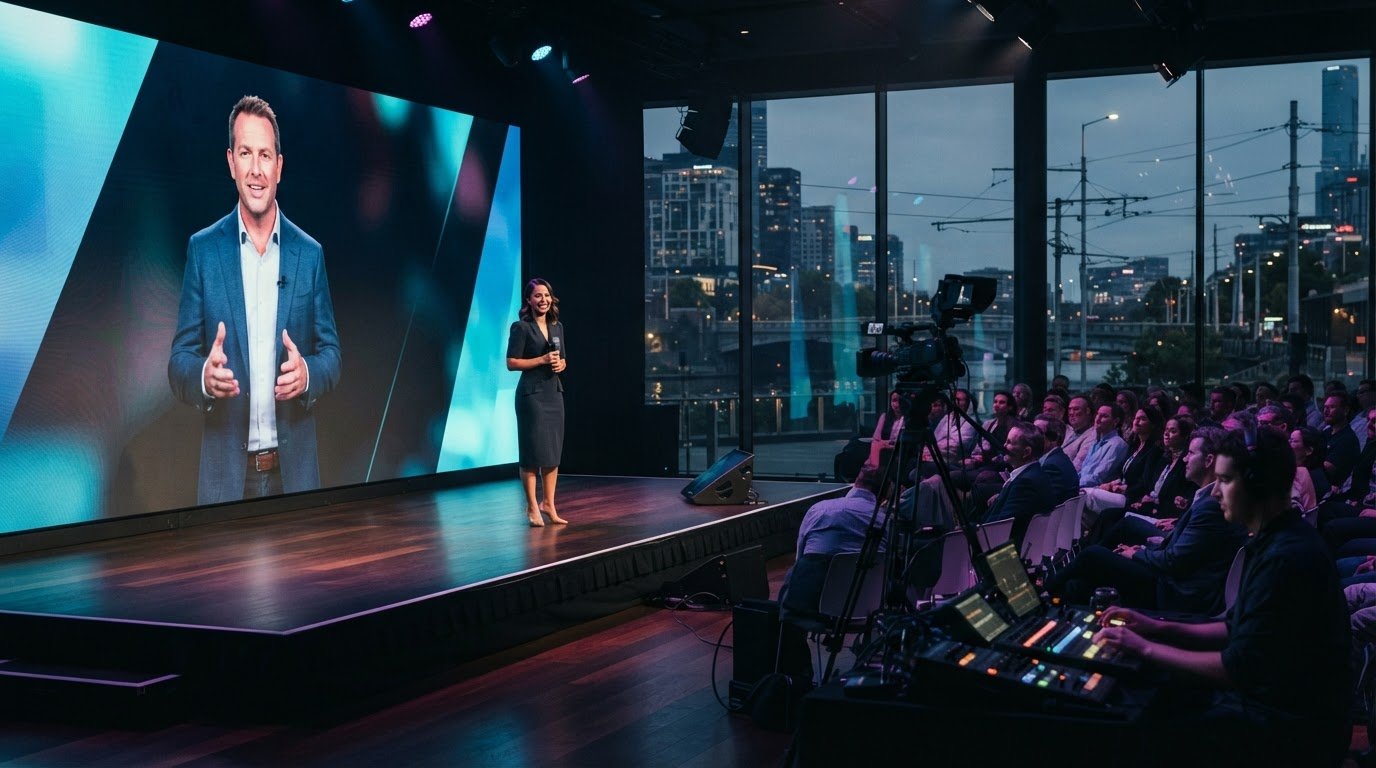
A remote presenter can join your Melbourne event from elsewhere and feel part of the room, rather than like a video call dropped onto a screen. Successful remote presenter integration for events depends on planning the connection, audio and stage handoffs as one production, then testing the presenter’s actual setup before show day.
It’s natural to focus on whether the speaker can connect. The bigger challenge is making sure they know when they’re live, can see and hear what they need, and appear clearly to the audience. A dropped connection, frozen image or poorly timed handoff can interrupt the programme, so preparation must account for both the presenter’s experience and the live room.
This guide explains how to plan the technical workflow, prepare the presenter, rehearse the full segment and support it live. Careful screen framing, audio routing and clear communication help remote speakers contribute with confidence and give your audience a seamless event experience.
Key Takeaways
- Map the venue, audience, event format and remote participation needs before shaping the technical workflow.
- Prepare the presenter’s internet, camera and audio setup so they can connect clearly with the room.
- Rehearse the joining process and stage handoffs, then keep technical support aligned throughout the live segment.
- Plan for both in-room and online audiences with clear screen framing, moderation and ways to take part.
What makes remote presenters risky at live events?
Hybrid events connect a remote presenter to a live room, but the presenter’s feed also depends on technology outside the venue. Plan the platform, audience format and technical workflow together to reduce production surprises.
Presenter Location Testing
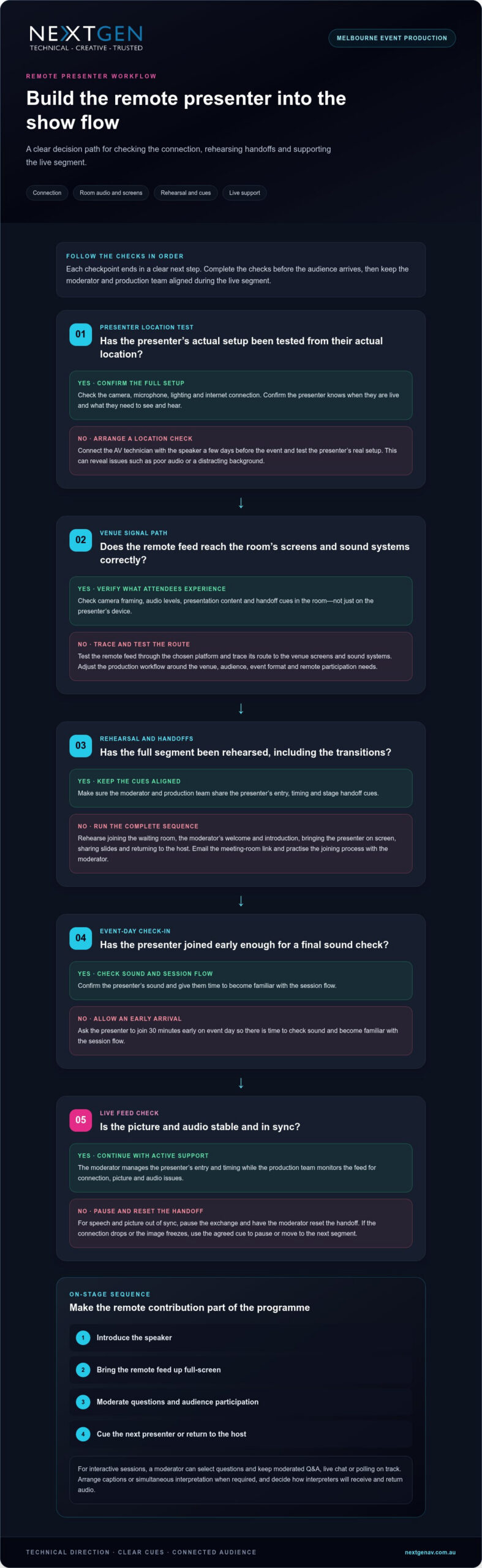
Test the presenter’s actual setup from their actual location, including their camera, microphone, lighting and internet connection. This reveals issues that a venue-only check can’t catch, such as a distracting background or poor audio. Connect the AV technician with the speaker a few days before the event, then confirm the presenter knows when they’re live and what they need to see and hear.
Pre-event Technical Checks
Before the event, test the remote feed through the chosen platform and trace its route to the room’s screens and sound systems. Confirm camera framing, audio levels, presentation content and handoff cues. Plan the venue, audience, event format, remote participation needs and preferred platform together before designing the production system.
A live webinar needs active technical operation, not just a meeting link. Assign a moderator to manage the presenter’s entry and timing, while the production team monitors for a dropped connection, frozen image or audio desynchronisation. Treat the remote feed as a production dependency, with a clear cue for pausing or moving to the next segment if it fails.
For a recording, tell the presenter in advance whether the session will be recorded, why it will be used, who can access it and how it will be shared. Obtain consent and limit access to authorised people. In Australia, consider privacy and data handling when recordings identify a person or capture personal information.
Across Melbourne, specialist event-production companies like NextGen AV with virtual and hybrid event capability coordinate remote feeds with in-room audio, screens and live production. Look for an integrated workflow that includes presenter testing, technical direction and support during sessions, rather than treating the connection as a standalone webinar.
How do you make a remote presenter feel integrated on stage?
Build the presenter’s connection, audio and stage cues into the running order. A clear workflow helps speakers engage with the room instead of simply appearing on screen.
Audio, Internet and Workspace Setup
Ask the presenter to use a wired internet connection where possible, along with headphones with a built-in microphone. If Wi-Fi is needed, choose the strongest signal in a quiet, well-lit room. Position the camera at eye level and frame the head and shoulders. Close windows and silence distracting devices to keep speech clear.
Integration Beyond a Video Call
A simple video call puts a speaker on screen; event integration connects their segment to the stage, audience and show cues. Plan the sequence: introduce the speaker, bring their feed up full-screen, manage questions, then cue the next presenter. A moderator can relay audience questions while the remote speaker sees the room and reads its reactions.
Make the remote feed part of the production mix, with a deliberate screen layout and audio route. This gives the audience a clear view and helps the presenter feel included. For interactive sessions, use moderated Q&A, live chat or polling, with a moderator selecting questions and keeping the exchange on track.
Managing Latency and Technical Failures
To limit audio feedback, avoid sending the room’s amplified sound back through the remote microphone. Coordinate mute cues and audio routing between the presenter and venue team. If speech and picture drift out of sync, pause the exchange and have the moderator reset the handoff instead of letting confusing audio continue.
Plan accessibility before the session: arrange captions or simultaneous interpretation when required, and decide how interpreters will receive and return audio. Congress Australia describes an event using interpretation and captioning for 9 languages, and provided seven simultaneous interpretation channels for the ASEAN – Australia Special Summit. Recording can support replay, training or future marketing; explain its purpose and obtain the presenter’s consent before recording.
Remote presenter testing, rehearsals and live event support
A rehearsal makes the presenter’s connection a planned part of the running order. Test the joining process, platform and stage handoffs before the live audience arrives.
Presenter Joining and Moderator Rehearsals
Send the meeting-room link by email and rehearse the presenter’s entry into the waiting room with the moderator. The moderator should practise welcoming the speaker, confirming they’re ready and cueing their introduction. Ask the presenter to join 30 minutes early on event day, allowing time to check their sound and become familiar with the session flow.
Platforms and AV Equipment
Microsoft Teams, Zoom, YouTube, Vimeo, Facebook Live and custom streaming platforms can carry remote sessions. The production setup may include cameras, streaming infrastructure, audio routing and systems to manage presentation content. Select the platform around the audience and event format, then test how its feed reaches the venue screen and sound systems. That lets technical operators monitor the picture and audio together.
Connection and Pre-event Testing
Connect the presenter using the event’s chosen platform, then test their actual camera, microphone and presentation content. Run the full segment, including the host’s introduction, the presenter’s speaking cues and the handoff back to the stage. Check the streaming feed in the room, not just on the presenter’s device, so operators can assess what attendees will see and hear.
Include transitions in the technical rehearsal. Practise bringing the presenter on screen, sharing slides and returning to the host; clear cues prevent dead air between speakers. The moderator and production team should agree on a pause signal if the feed freezes or drops.
During live streaming, assign an operator to monitor the connection, picture and audio while the moderator manages the speaker. If a technical failure interrupts the segment, the host can hold the room and follow the agreed running-order response. This coordinated support helps keep the session clear for attendees in Australia and online.
Remote and virtual speakers for hybrid conferences
A hybrid conference serves people in the room and participants joining virtually, so plan both experiences together. Choose a format that suits the meeting’s purpose, the speaker’s role and how each audience will participate.
For an investor relations event, a remote executive can address a Melbourne audience while other stakeholders join online. Set the speaking order, screen layout and question process in advance. Keep slides legible on smaller devices, and show the speaker clearly in the venue so their contribution feels connected to the meeting.
Hybrid formats can include a live in-room conference with remote speakers, a streamed stage programme or sessions designed for both audiences. Match the format to the content: a presentation may need a clear visual feed and slides, while a panel needs orderly turn-taking and a way for online participants to contribute. The production plan should coordinate camera coverage, audio, presentation management and streaming.
Moderated Q&A gives both audiences a way into the discussion. A moderator can collect questions from the room and online channels, group similar topics and direct them to the speaker. Explain how attendees can submit questions before the session begins, and give the moderator a clear view of the remote speaker and running order.
Online access can extend an organisation’s audience beyond those able to attend in person. Registration, passwords or private access links can control entry to a stream. To connect locations visually, show the remote speaker full-screen while they speak, then return to slides or a panel view as the programme moves on. These cues help remote and in-room participants follow the same conversation.
NextGen AV’s virtual and hybrid event solutions can bring the stage, speakers and streaming workflow together for conferences and investor events. Plan your hybrid event production around the experience you want both audiences to share.
NextGen AV: LED Video Walls
NextGen AV integrates remote presenters into the room with LED Video Walls planned around clear sightlines and the stage design. A well-framed presenter feed helps in-person attendees follow the conversation, while coordinated Professional Audio Systems keep speech clear across the venue.
For a hybrid conference or product launch, NextGen AV can coordinate these elements with Lighting Design and Equipment, Staging and Rigging, and technical production planning. The aim is a considered experience where the remote speaker’s image, audio and stage cues support the programme instead of feeling like separate elements.
If you’re planning a Melbourne event with remote speakers, contact NextGen AV to discuss your production requirements.
Design the next event around connection
Before finalising the running order, decide what the remote presenter should contribute to your event. A keynote, live product announcement and panel discussion each call for a different rhythm, visual treatment and relationship with the room. Shape the production around that purpose so the technology supports the message rather than becoming the focus.
That creative decision also gives your event team a clear brief: what the audience should see, how the speaker joins the conversation and what the moment needs to achieve. Strong remote presenter integration for events is more than putting a feed on screen. It makes distance feel intentional and gives the speaker a meaningful role in the experience.
For a Melbourne event, NextGen AV can help translate that vision into a coordinated production. Contact NextGen AV about your event to discuss the experience you want to create. Your next event can bring every speaker into the story.
Frequently Asked Questions
Can presenters join from different locations?
Yes. Speakers in different cities or countries can join the same event programme remotely, with each appearance scheduled into the running order. Supported platforms include Events Air, Cvent, YouTube Studio, Zoom, Microsoft Teams, Bettercast. For a Melbourne conference with interstate panellists, a moderator can coordinate each speaker’s turn while the production team switches between their feeds.
Can remote attendees participate in Q&A?
Yes. Remote attendees can submit questions through the event’s chosen participation channel, while a moderator selects and directs them to the speaker. For a product briefing, the moderator can group questions on the same topic and read them aloud, giving online contributors a voice alongside people in the room. Explain the process before the session starts.
How do you ensure a reliable connection for a remote presenter?
Match the presenter’s connection to the selected platform and planned video quality, then assess upload stability under realistic working conditions. Reduce competing network activity during the presentation, such as large file uploads. An independent backup connection, such as mobile data, can provide another route if the primary service fails. Test the switch so the team knows how to recover.
What is remote presenter integration for events?
Remote presenter integration for events is the planned connection between an off-site speaker and the live programme. It brings the presenter’s contribution into the event’s visual, audio and session flow, rather than treating it as a separate call. For example, a virtual panellist can join a discussion with an in-room chair and remote participants.
What internet bandwidth and backup connectivity are needed for remote presentations?
Bandwidth needs depend on the platform’s requirements, video quality, audio, screen sharing and other activity on the presenter’s network. Follow the platform’s published guidance, then test the actual connection with the presenter’s camera and presentation running. Plan an independent backup route, such as mobile data, based on local coverage and the presenter’s setup, and rehearse the switch.
Discover Valuable Insights
Unlock Expert Tips and Advice
Our blog is packed with valuable information to help you stay ahead. Whether you’re looking for expert advice, industry trends, or practical tips, you’ll find everything you need. Reach out today to learn more or get in touch with us for personalised support!