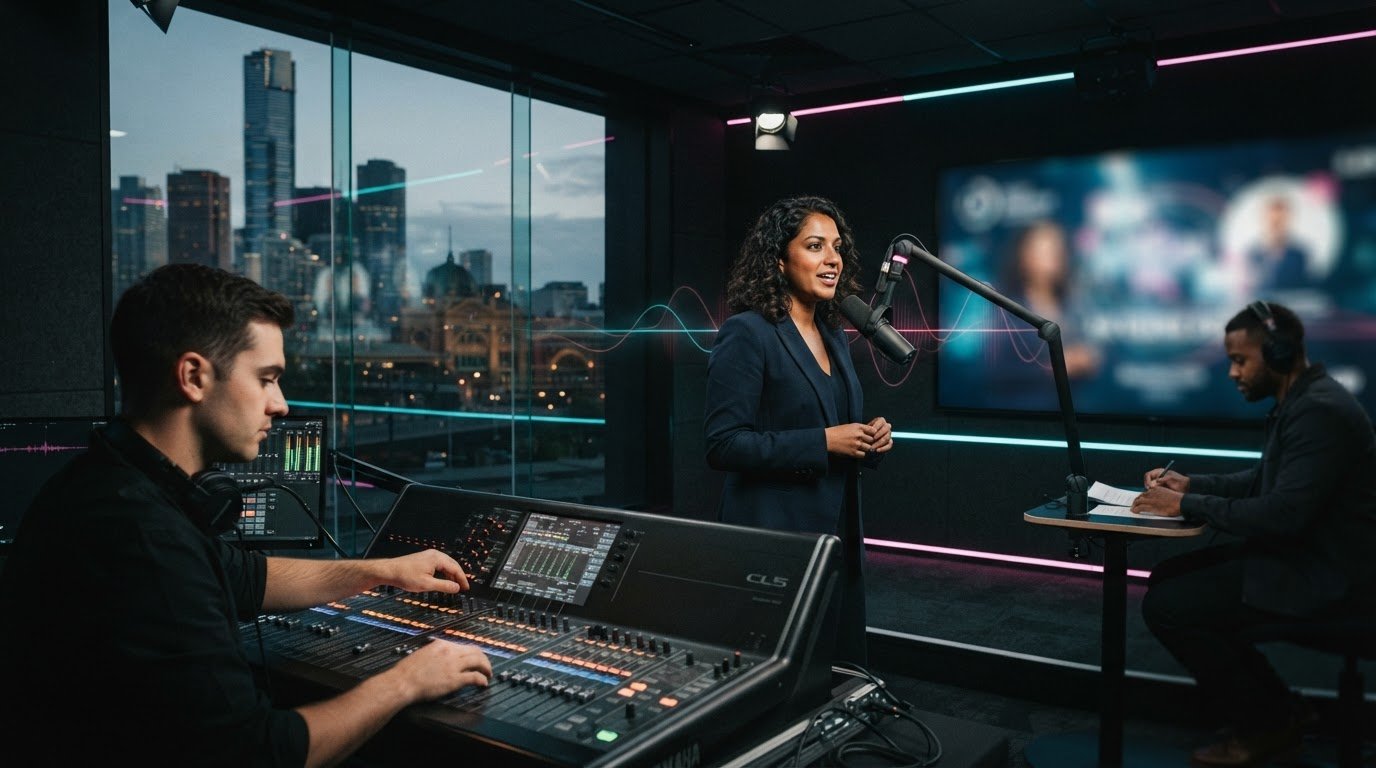
Clear audio takes more than choosing a microphone. It depends on consistent speaker levels, suitable equipment, rehearsals and a team ready to respond when sound changes. The best practices for virtual event audio also include clear roles, tested connections and a reliable way to communicate with speakers and attendees in real time. When these elements work together, audiences can follow the conversation without technical distractions.
Poor sound can distract from even the strongest presentation. Deliberate preparation makes virtual event audio more reliable and helps speakers feel supported on the day. This guide covers practical ways to improve sound quality, coordinate presenters and technical support, choose suitable equipment and manage real-time communication. Each decision contributes to a smoother, more engaging event, from the opening welcome to the final question.
Key Takeaways
- Keep speaker audio levels consistent and plan moments that invite audience participation.
- Use a rehearsal and clear run sheet so speakers, moderators and technical support know their roles.
- Choose microphones and audiovisual equipment suited to the event, then test each presenter’s setup.
- Plan how your team will communicate live and respond if sound, video or connectivity changes.
1. Audio quality and audience perception
The best practices for virtual event audio start with consistent levels across presenters. A sudden shift from a measured keynote voice to a louder panellist can distract viewers. During the sound check, have each speaker use their planned microphone and speak at presentation volume. Adjust levels so the audience can follow handovers without reaching for their own volume controls.
Clear sound also depends on how presenters engage people online. Ask speakers to look towards the camera, use direct language and pause after key points. For example, a presenter can invite attendees to respond to a poll before moving to the next slide. These deliberate exchanges make audience participation part of the session, not an afterthought.
Build audience interaction into the run sheet. A moderator can gather questions from chat, select them for live Q&A and relay them to presenters. Polls give attendees another way to contribute without interrupting a speaker. For networking, schedule a facilitated discussion or breakout conversation and provide a clear prompt to get participants talking.
Australian virtual events should offer accessibility options that help attendees follow spoken content and participate. Consider closed captions, language options and accessible content formats, including for recorded or on-demand presentations. Let attendees contribute through suitable event features, such as chat, written questions or live Q&A, so participation isn’t limited to speaking aloud.
Set out a clear communication route for attendees before the broadcast begins. Explain where to submit questions, how to request technical support and when networking will take place. During the event, have the moderator acknowledge questions and tell participants when answers are coming. Clear, real-time updates help maintain connection and keep the session running smoothly.
2. Coordinating speakers, moderators, and technical support teams
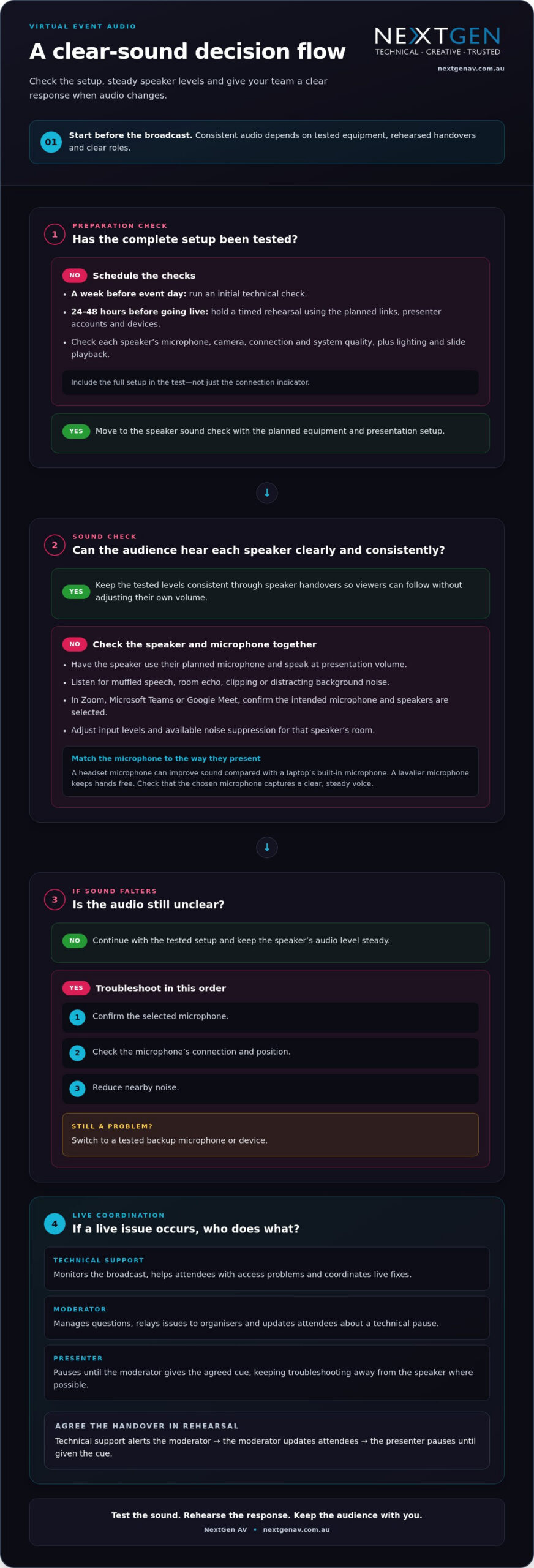
Assign roles before the event begins. Speakers focus on presenting, while a moderator introduces guests, manages questions and communicates issues to organisers. A technical support person should monitor the broadcast, help attendees with access problems and coordinate live fixes. Dividing responsibilities lets presenters stay focused on their message.
Add these responsibilities to the run sheet alongside speaker order, session timings and handover cues. Specify who advances slides, admits a late panellist and updates attendees about a short technical pause. A successful virtual event depends on every team member knowing what to do, rather than waiting for instructions during a live session.
Test the complete setup before event day. Schedule an initial technical check a week before event day, then run a timed rehearsal 24 to 48 hours before going live. Use the planned links, presenter accounts and devices. Check each speaker’s microphone, camera, connection and system quality, plus lighting and slide playback.
Give speakers concise written instructions in advance, with screenshots showing how to mute, share slides and access the session. Include practical on-camera tips, such as checking framing and lighting from the presentation position. Offer several opportunities to test, especially for presenters unfamiliar with the platform or equipment.
Prepare backup presentation files and agree how the team will switch systems if a file fails or connection quality drops. Practise the handover during rehearsal: technical support alerts the moderator, the moderator updates attendees, and the presenter pauses until given the cue. Keep troubleshooting away from the speaker whenever possible.
For a complex hosting plan, virtual event production planning can bring technical direction and presenter coordination into one workflow, helping the team manage transitions while speakers stay focused.
3. Investing in high-quality microphones and audiovisual equipment
Choose microphones and audiovisual equipment to suit the speakers, session format and production needs. A headset microphone can improve sound compared with a laptop’s built-in microphone, while a lavalier microphone keeps hands free during presentations. Match the microphone to how each speaker will move and present, then check that it captures a clear, steady voice. For teams capturing live discussions or interviews outside a traditional studio, professional setups such as Remote Podcast Recording and Production highlight how tailored equipment ensures consistent, high-fidelity sound across diverse environments.
For Zoom, Microsoft Teams and Google Meet, select the intended microphone and speakers in each platform’s audio settings. Test those selections during rehearsal, then adjust input levels and available noise suppression for the speaker’s room. Don’t assume a setting that works for one presenter will suit every device or space.
Assess audio and video together. Ask speakers to deliver a short section as they would during the live event, then listen for muffled speech, room echo, clipping or distracting background noise. Check that their face remains visible and well lit, and that slides are legible. This practical test reveals problems that a device’s connection indicator can’t.
If sound falters, troubleshoot in a simple order: confirm the selected microphone, check its connection and position, then reduce nearby noise. If the problem continues, switch to a tested backup microphone or device. For example, a presenter who moves too far from a desk microphone may sound quieter even though the meeting remains connected.
Professional Audio Systems can provide controlled sound for virtual and hybrid production, while coordinated lighting and visuals help presenters appear clearly on screen. For multi-speaker events, plan each setup around the room, microphone type and session format—principles also embraced by specialist facilities like Podcast Zurich to achieve reliable, broadcast-quality audio. This preparation supports natural interaction and a polished audience experience, without distracting technical interruptions.
4. Real-time audio and video communication
A virtual conference is a live exchange, not simply a sequence of presentations. Choose a format that lets the audience hear speakers clearly, see visual content and respond without interrupting the programme. For example, pair a keynote with moderated chat questions, then bring selected responses into a live discussion.
There’s no single bandwidth figure that suits every event. Connection demands depend on video quality, the number of simultaneous feeds, platform settings and other activity on the network. Test the presenter setup and stream format, then reduce competing uploads or use a stable wired connection where available.
Before going live, check audio and video together in the chosen platform. Confirm that the correct microphone and speakers are selected, listen for echo, and view the presenter and shared screen as attendees will see them. Keep the audio mix consistent, mute unused microphones and test any noise-processing setting with real speech.
Real-time communication needs a clear route in both directions. Tell attendees whether to use chat, live Q&A or a poll, and assign a moderator to relay questions. If a speaker’s connection drops, the moderator can acknowledge the pause while technical support restores the feed or moves to a prepared segment.
During the session, monitor what viewers actually receive, not just the presenter’s local preview. A delayed voice, frozen screen or missing slide can disrupt the message. Give the team a simple response sequence: identify the fault, inform the moderator, update the audience, then resume once sound and picture are aligned.
For an event where live feeds, audience interaction and visual content must work as one, plan virtual and hybrid event production with technical direction built into the delivery.
NextGen AV: LED Video Walls
NextGen AV brings Professional Audio Systems and LED Video Walls together for virtual and hybrid events, aligning clear sound with visuals audiences can follow. This coordinated technical production is a natural fit when speakers, presentations and live audience feeds need to work as one.
For Melbourne conferences and corporate events, the right setup depends on the session format, venue and content. Lighting Design and Equipment can support clear on-screen presentations, while Staging and Rigging helps shape the event environment. A coordinated production plan connects these elements to the audience experience and keeps technical decisions aligned with your programme.
Contact NextGen AV to discuss your event, or visit nextgenav.com.au.
Shape your next event
Applying the best practices for virtual event audio is part of a broader creative decision: how should your audience experience the event? Start with the impression you want attendees to take away, then shape the format and production around that purpose. A virtual event should feel intentionally designed, not like an in-person programme simply transferred to a screen.
Bring that intention into planning early. A shared vision gives speakers, organisers and production teams a clear point of reference, so technical choices support the content and audience experience. It also helps create a distinctive event identity that feels cohesive from the opening moment to the final sign-off.
As you shape your next programme, talk with NextGen AV about your event and explore how the production can support your vision. With a clear direction in place, you can focus on the people and ideas at the heart of the experience.
Frequently Asked Questions
What microphone and audio equipment work best for virtual events?
A headset or lavalier microphone usually gives speakers clearer, more consistent sound than a laptop’s built-in microphone. Choose according to how the presenter will move: a headset stays close to the speaker’s mouth, while a lavalier clips onto clothing. For a panel, give each speaker a dedicated microphone and test the full setup together so voices remain distinct during discussion.
How should speakers and presenters set up microphones for clear virtual event audio?
Place the microphone securely and keep it in a consistent position as you speak. For a headset, position the boom near the corner of your mouth, not directly in front of your breath. Clip a lavalier where clothing won’t rub against it. Select the correct input in your meeting platform, then listen to a short playback to catch distortion or handling noise.
How do you reduce echo, background noise, and feedback in a virtual event?
Use headphones, close unnecessary applications and ask speakers to mute when they aren’t talking. Echo often occurs when a microphone picks up sound from speakers in the same room, so avoid placing open speakers near the mic. Choose a quiet room, silence notifications and keep the microphone away from fans or other noise sources. If feedback starts, mute the affected channel first.
How should virtual event audio be tested before the event?
Test in the same room, with the devices and platform planned for the live session, then play back a recording to hear what attendees may receive. Include a speaker handover, shared presentation audio and audience questions in the test. Check for changes in loudness, interference and delay between voice and picture. For Melbourne events, consider whether a presenter’s location or network use could affect their connection.
What are best practices for managing audience microphones and Q&A audio?
Keep audience microphones muted by default, then invite participants to speak one at a time. A moderator should identify each questioner, confirm their microphone is active and return it to mute after the response. For a large or noisy session, accept questions through chat and have the moderator read them aloud. This gives speakers a clean audio path while preserving audience participation.
What backup audio equipment and connection plans should virtual events have?
Prepare a tested spare microphone, a second device and presentation files accessible to the technical team. Identify an alternative internet connection, such as a mobile hotspot, and decide who will announce a change if the main connection fails. Keep the backup microphone connected or within reach, and practise switching to it in rehearsal so the team can restore sound without leaving attendees uncertain.
Clear audio takes more than choosing a microphone. It depends on consistent speaker levels, suitable equipment, rehearsals and a team ready to respond when sound changes. The best practices for virtual event audio also include clear roles, tested connections and a reliable way to communicate with speakers and attendees in real time. When these elements work together, audiences can follow the conversation without technical distractions.
Poor sound can distract from even the strongest presentation. Deliberate preparation makes virtual event audio more reliable and helps speakers feel supported on the day. This guide covers practical ways to improve sound quality, coordinate presenters and technical support, choose suitable equipment and manage real-time communication. Each decision contributes to a smoother, more engaging event, from the opening welcome to the final question.
Key Takeaways
- Keep speaker audio levels consistent and plan moments that invite audience participation.
- Use a rehearsal and clear run sheet so speakers, moderators and technical support know their roles.
- Choose microphones and audiovisual equipment suited to the event, then test each presenter’s setup.
- Plan how your team will communicate live and respond if sound, video or connectivity changes.
1. Audio quality and audience perception
The best practices for virtual event audio start with consistent levels across presenters. A sudden shift from a measured keynote voice to a louder panellist can distract viewers. During the sound check, have each speaker use their planned microphone and speak at presentation volume. Adjust levels so the audience can follow handovers without reaching for their own volume controls.
Clear sound also depends on how presenters engage people online. Ask speakers to look towards the camera, use direct language and pause after key points. For example, a presenter can invite attendees to respond to a poll before moving to the next slide. These deliberate exchanges make audience participation part of the session, not an afterthought.
Build audience interaction into the run sheet. A moderator can gather questions from chat, select them for live Q&A and relay them to presenters. Polls give attendees another way to contribute without interrupting a speaker. For networking, schedule a facilitated discussion or breakout conversation and provide a clear prompt to get participants talking.
Australian virtual events should offer accessibility options that help attendees follow spoken content and participate. Consider closed captions, language options and accessible content formats, including for recorded or on-demand presentations. Let attendees contribute through suitable event features, such as chat, written questions or live Q&A, so participation isn’t limited to speaking aloud.
Set out a clear communication route for attendees before the broadcast begins. Explain where to submit questions, how to request technical support and when networking will take place. During the event, have the moderator acknowledge questions and tell participants when answers are coming. Clear, real-time updates help maintain connection and keep the session running smoothly.
2. Coordinating speakers, moderators, and technical support teams
Assign roles before the event begins. Speakers focus on presenting, while a moderator introduces guests, manages questions and communicates issues to organisers. A technical support person should monitor the broadcast, help attendees with access problems and coordinate live fixes. Dividing responsibilities lets presenters stay focused on their message.
Add these responsibilities to the run sheet alongside speaker order, session timings and handover cues. Specify who advances slides, admits a late panellist and updates attendees about a short technical pause. A successful virtual event depends on every team member knowing what to do, rather than waiting for instructions during a live session.
Test the complete setup before event day. Schedule an initial technical check a week before event day, then run a timed rehearsal 24 to 48 hours before going live. Use the planned links, presenter accounts and devices. Check each speaker’s microphone, camera, connection and system quality, plus lighting and slide playback.
Give speakers concise written instructions in advance, with screenshots showing how to mute, share slides and access the session. Include practical on-camera tips, such as checking framing and lighting from the presentation position. Offer several opportunities to test, especially for presenters unfamiliar with the platform or equipment.
Prepare backup presentation files and agree how the team will switch systems if a file fails or connection quality drops. Practise the handover during rehearsal: technical support alerts the moderator, the moderator updates attendees, and the presenter pauses until given the cue. Keep troubleshooting away from the speaker whenever possible.
For a complex hosting plan, virtual event production planning can bring technical direction and presenter coordination into one workflow, helping the team manage transitions while speakers stay focused.
3. Investing in high-quality microphones and audiovisual equipment
Choose microphones and audiovisual equipment to suit the speakers, session format and production needs. A headset microphone can improve sound compared with a laptop’s built-in microphone, while a lavalier microphone keeps hands free during presentations. Match the microphone to how each speaker will move and present, then check that it captures a clear, steady voice.
For Zoom, Microsoft Teams and Google Meet, select the intended microphone and speakers in each platform’s audio settings. Test those selections during rehearsal, then adjust input levels and available noise suppression for the speaker’s room. Don’t assume a setting that works for one presenter will suit every device or space.
Assess audio and video together. Ask speakers to deliver a short section as they would during the live event, then listen for muffled speech, room echo, clipping or distracting background noise. Check that their face remains visible and well lit, and that slides are legible. This practical test reveals problems that a device’s connection indicator can’t.
If sound falters, troubleshoot in a simple order: confirm the selected microphone, check its connection and position, then reduce nearby noise. If the problem continues, switch to a tested backup microphone or device. For example, a presenter who moves too far from a desk microphone may sound quieter even though the meeting remains connected.
Professional Audio Systems can provide controlled sound for virtual and hybrid production, while coordinated lighting and visuals help presenters appear clearly on screen. For multi-speaker events, plan each setup around the room, microphone type and session format. This preparation supports natural interaction and a polished audience experience, without distracting technical interruptions.
4. Real-time audio and video communication
A virtual conference is a live exchange, not simply a sequence of presentations. Choose a format that lets the audience hear speakers clearly, see visual content and respond without interrupting the programme. For example, pair a keynote with moderated chat questions, then bring selected responses into a live discussion.
There’s no single bandwidth figure that suits every event. Connection demands depend on video quality, the number of simultaneous feeds, platform settings and other activity on the network. Test the presenter setup and stream format, then reduce competing uploads or use a stable wired connection where available.
Before going live, check audio and video together in the chosen platform. Confirm that the correct microphone and speakers are selected, listen for echo, and view the presenter and shared screen as attendees will see them. Keep the audio mix consistent, mute unused microphones and test any noise-processing setting with real speech.
Real-time communication needs a clear route in both directions. Tell attendees whether to use chat, live Q&A or a poll, and assign a moderator to relay questions. If a speaker’s connection drops, the moderator can acknowledge the pause while technical support restores the feed or moves to a prepared segment.
During the session, monitor what viewers actually receive, not just the presenter’s local preview. A delayed voice, frozen screen or missing slide can disrupt the message. Give the team a simple response sequence: identify the fault, inform the moderator, update the audience, then resume once sound and picture are aligned.
For an event where live feeds, audience interaction and visual content must work as one, plan virtual and hybrid event production with technical direction built into the delivery.
NextGen AV: LED Video Walls
NextGen AV brings Professional Audio Systems and LED Video Walls together for virtual and hybrid events, aligning clear sound with visuals audiences can follow. This coordinated technical production is a natural fit when speakers, presentations and live audience feeds need to work as one.
For Melbourne conferences and corporate events, the right setup depends on the session format, venue and content. Lighting Design and Equipment can support clear on-screen presentations, while Staging and Rigging helps shape the event environment. A coordinated production plan connects these elements to the audience experience and keeps technical decisions aligned with your programme.
Contact NextGen AV to discuss your event, or visit nextgenav.com.au.
Shape your next event
Applying the best practices for virtual event audio is part of a broader creative decision: how should your audience experience the event? Start with the impression you want attendees to take away, then shape the format and production around that purpose. A virtual event should feel intentionally designed, not like an in-person programme simply transferred to a screen.
Bring that intention into planning early. A shared vision gives speakers, organisers and production teams a clear point of reference, so technical choices support the content and audience experience. It also helps create a distinctive event identity that feels cohesive from the opening moment to the final sign-off.
As you shape your next programme, talk with NextGen AV about your event and explore how the production can support your vision. With a clear direction in place, you can focus on the people and ideas at the heart of the experience.
Frequently Asked Questions
What microphone and audio equipment work best for virtual events?
A headset or lavalier microphone usually gives speakers clearer, more consistent sound than a laptop’s built-in microphone. Choose according to how the presenter will move: a headset stays close to the speaker’s mouth, while a lavalier clips onto clothing. For a panel, give each speaker a dedicated microphone and test the full setup together so voices remain distinct during discussion.
How should speakers and presenters set up microphones for clear virtual event audio?
Place the microphone securely and keep it in a consistent position as you speak. For a headset, position the boom near the corner of your mouth, not directly in front of your breath. Clip a lavalier where clothing won’t rub against it. Select the correct input in your meeting platform, then listen to a short playback to catch distortion or handling noise.
How do you reduce echo, background noise, and feedback in a virtual event?
Use headphones, close unnecessary applications and ask speakers to mute when they aren’t talking. Echo often occurs when a microphone picks up sound from speakers in the same room, so avoid placing open speakers near the mic. Choose a quiet room, silence notifications and keep the microphone away from fans or other noise sources. If feedback starts, mute the affected channel first.
How should virtual event audio be tested before the event?
Test in the same room, with the devices and platform planned for the live session, then play back a recording to hear what attendees may receive. Include a speaker handover, shared presentation audio and audience questions in the test. Check for changes in loudness, interference and delay between voice and picture. For Melbourne events, consider whether a presenter’s location or network use could affect their connection.
What are best practices for managing audience microphones and Q&A audio?
Keep audience microphones muted by default, then invite participants to speak one at a time. A moderator should identify each questioner, confirm their microphone is active and return it to mute after the response. For a large or noisy session, accept questions through chat and have the moderator read them aloud. This gives speakers a clean audio path while preserving audience participation.
What backup audio equipment and connection plans should virtual events have?
Prepare a tested spare microphone, a second device and presentation files accessible to the technical team. Identify an alternative internet connection, such as a mobile hotspot, and decide who will announce a change if the main connection fails. Keep the backup microphone connected or within reach, and practise switching to it in rehearsal so the team can restore sound without leaving attendees uncertain.
Discover Valuable Insights
Unlock Expert Tips and Advice
Our blog is packed with valuable information to help you stay ahead. Whether you’re looking for expert advice, industry trends, or practical tips, you’ll find everything you need. Reach out today to learn more or get in touch with us for personalised support!