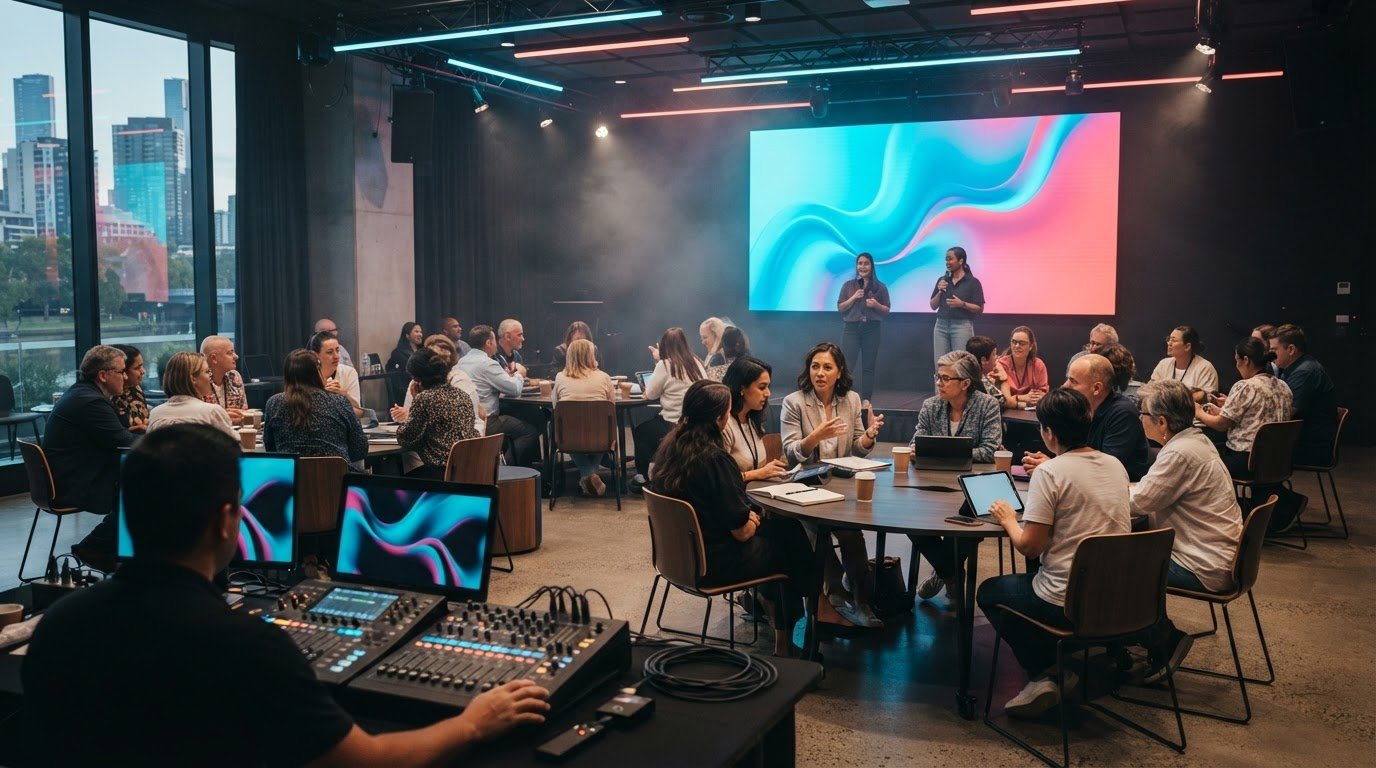
The agenda, not the room, should set the AV plan. For a Melbourne training day, plan the timing and focus around the learning activities. In Victorian government schools, teachers agree these in consultation with the principal. If they cannot agree, the principal determines the timing and the teacher determines the focus. This gives you a clear starting point for choosing AV for training and development days.
It’s easy to focus on screens and microphones first, but the right setup depends on how people will learn, contribute and share information. This guide will help you match AV to the day’s purpose, from facilitated workshops and presentations to an Australian L&D conference. You’ll learn which technical elements support each format, how to plan transitions between sessions, and what to consider when shaping a Melbourne event for a connected, engaged audience.
Key Takeaways
- Match the AV plan to the learning activities, from presentation-led sessions to hands-on workshops.
- Check what the venue package covers, then identify the technical gaps your programme still needs to address.
- Choose a room layout that supports clear sightlines, audible speech and easy participation.
- Test the complete setup before attendees arrive, including presentation playback, microphones and transitions between sessions.
AV equipment needed for a training day in Australia
Choose AV for training and development days to suit the learning format: presentations, facilitated discussion, practical exercises or a mix. Map the agenda before selecting equipment, then match each session to its technical needs. This keeps screens, sound and lighting focused on learning rather than decoration.
For Victorian government schools, professional practice days shape staff development planning. According to the Victorian Department of Education, a teacher employed at 0.5 FTE is entitled to half a professional practice day on an annual basis. Align the AV plan with the day’s focus, whether that means sharing curriculum resources, supporting collaboration or presenting professional development material.
- A display screen is a visual surface for slides, demonstrations and shared documents. Position content for clear sightlines, and use a projector or LED display when the room needs a larger image.
- A sound system reproduces spoken content so participants can follow presenters and video playback. Match the setup to the room and session format, particularly when discussion moves beyond the front.
- A wireless microphone transmits a speaker’s voice without a cable connection. Use one for a presenter who moves around, and plan a separate microphone for audience questions.
- Lighting equipment illuminates presenters and work areas. Balance stage lighting with screen visibility, while keeping enough light for note-taking during presentations.
- Connection equipment links presenter devices to displays and audio. Prepare the required adapters and test presentation playback, including embedded video and sound.
For a workshop with small-group exercises, prioritise intelligible speech and visible instructions over a large presentation image. A conference-style briefing may need a prominent screen, clear presenter audio and controlled lighting. Build an equipment schedule against the agenda: list each session, its content format, microphone needs and display requirements. This practical step helps AV for training and development days support learning from the opening briefing through the final discussion.
AV services in Australian training day packages
A training-day package is a venue’s bundle of room and event provisions for a booked programme. Inclusions depend on the venue and booking, so use the written package schedule as your checklist. For example, a Melbourne meeting-room package may list a display, microphones, Wi-Fi and room setup as separate inclusions.
Separate included equipment from support and operating conditions. Before confirming the room, match each agenda item to the listed provisions and record any gaps for the organiser to resolve. A presentation, video playback and audience questions each place different demands on the setup.
- Display provision is the screen or projection system listed for visual content. Check whether it suits your slides and video, and whether presenter connections are described.
- Audio provision is the equipment supplied to reproduce speech or media sound. Look for microphones and speakers, then check that the planned format supports both presenter delivery and participant questions.
- Connectivity is the network access and device connection available in the room. Confirm how presenters connect laptops, and include online resources or remote participation in your agenda review.
- Technical assistance is operational support for the venue’s AV setup. Establish who manages start-up, session changes and troubleshooting, especially when presentations need to switch quickly.
- Room configuration is the furniture arrangement prepared for the booking. Compare the package setup with your session plan, such as theatre seating for a briefing or tables for group exercises.
Use a simple comparison table with three columns: package inclusion, session requirement and action. Mark each item as covered, requiring clarification or needing a separate arrangement. For example, if the schedule lists a screen but your agenda includes a video with sound, note audio playback as a separate requirement. This helps reveal practical gaps that an equipment label might hide.
For a programme with presentations, group work and changing formats, connect the venue checklist to the run sheet. An integrated event plan can help align technical requirements with the audience experience.
Best room layout and AV setup for training sessions
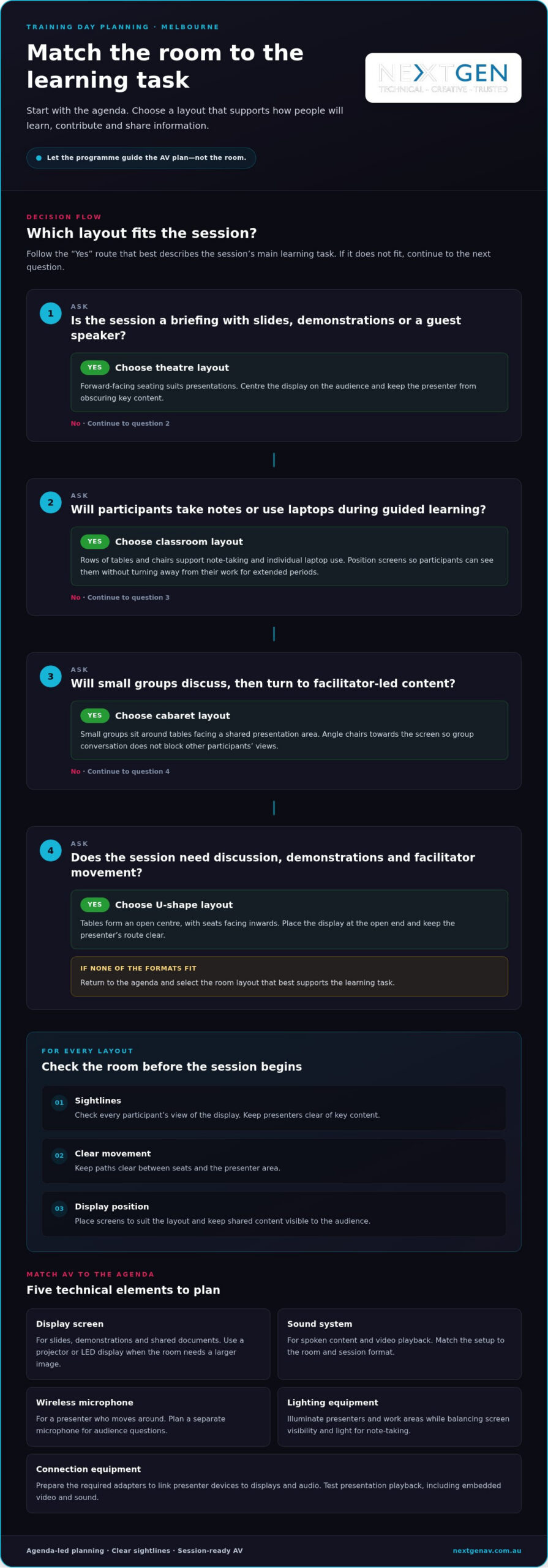
A room layout is a seating arrangement matched to the session’s learning task. Choose it from the agenda: theatre seating suits a presentation, while tables support practical exercises. In a Melbourne training room, keep paths clear between seats and the presenter area. Check every participant’s view of the display before the session begins.
- Theatre layout is forward-facing seating arranged towards a presenter or screen. Use it for a briefing with slides, demonstrations or a guest speaker. Keep the display centred on the audience, and avoid placing presenters where they obscure key content.
- Classroom layout is rows of tables and chairs facing the teaching area. It suits note-taking and individual laptop use during a guided session. Position screens so participants can see them without turning away from their work for extended periods.
- Cabaret layout is small groups seated around tables, facing a shared presentation area. Choose it for discussion followed by facilitator-led content. Angle chairs towards the screen, so group conversation doesn’t block other participants’ views.
- U-shape layout is tables arranged around an open centre, with seats facing inwards. It supports discussion, demonstrations and facilitator movement. Place the display at the open end, and keep the presenter’s route clear.
A sightline is an unobstructed view from a seat to the screen or presenter. Test it from the back and sides, not just the front row. A tall laptop or presenter lectern, for example, can block content at the bottom of a screen. Adjust the screen position or seating before attendees enter.
Audio coverage means clear speech reaches the room evenly. Test the presenter’s voice from the furthest seat and the side tables. For a discussion-based workshop, plan how questions will reach everyone instead of relying on the presenter to speak louder. Keep microphones and cables clear of walkways.
Use the run sheet to mark each change in format, such as a presentation moving into table work. Confirm the screen remains visible after chairs shift, and check lighting doesn’t wash out displayed content. This room-by-room walkthrough aligns the layout, sound and visuals with the way participants will learn.
How do you test and troubleshoot AV equipment before a training day?
A technical rehearsal tests the complete event setup before attendees arrive. Run it in the training room using the presenter’s devices, final slides and planned session sequence. Testing each component alone can miss problems between connected devices, so follow the full signal path.
- Signal path: the route content takes from a source device to the audience display or speakers. Connect the presenter’s laptop, display and audio, then open the actual slide deck. Check image size, text visibility, embedded video and playback sound.
- Microphone check: a test of speech transmission and room audibility. Ask the presenter to speak at their normal volume while moving through the planned area. Listen from the back and sides, then check for dropouts, handling noise or feedback.
- Lighting check: a review of how room and stage lighting affect visibility. Display a slide with dark text and another with detailed images. Adjust the room lighting if glare or bright areas make content difficult to read.
- Run-sheet rehearsal: a timed walkthrough of the event’s planned transitions. Practise switching between slides, video playback, discussion and breaks. Confirm who advances content and who manages microphones, so responsibilities remain clear during delivery.
Troubleshooting means identifying a fault, isolating its source and testing a correction. If a laptop image does not appear, check its connection, selected input and display output in sequence. If video plays without sound, inspect the source volume and audio connection. After each adjustment, retest the entire path.
Keep a written fault log that records the affected device, symptom and successful fix. Note practical backups too, such as keeping a second copy of the presentation on another device. Before participants enter, repeat the opening sequence and confirm the room is ready for the first presenter.
For a Melbourne training day that needs a coordinated technical rehearsal, plan your AV production around the run sheet and session transitions.
NextGen AV: LED Video Walls
NextGen AV supports training environments with LED Video Walls, Professional Audio Systems, Lighting Design and Equipment, and Staging and Rigging. Bring in the team when a presentation-led programme needs clear, prominent visuals or several sessions need to flow through a coordinated production plan.
An LED Video Wall can give slides, diagrams and session information a clear focal point, helping participants follow the presenter’s content. Its role depends on the room, viewing angles and programme format, so plan the display alongside the stage, sound and lighting rather than treating it as a standalone feature.
For a Melbourne development day with workshops, presentations and group discussion, align the technical plan with the run sheet and room layout. NextGen AV can coordinate the relevant production elements, keeping the audience experience central while managing the technical details behind the scenes.
Contact NextGen AV to discuss the AV requirements for your training day.
Shape the learning experience
A training day has direction when every technical choice serves a clear learning intention. Before finalising the production plan, define what participants should understand, practise or contribute. That purpose gives presenters and organisers a shared framework for shaping the day.
For AV for training and development days, connect the programme’s learning goals with the moments that need emphasis. A leadership session may call for a considered pace and clear visual storytelling, while a collaborative workshop needs room for ideas to move between participants. Treat each transition as part of the experience, not just a change on the run sheet.
Use your next planning conversation to align the audience experience, content and technical direction. NextGen AV can bring those elements together with LED Video Walls, Professional Audio Systems and Lighting Design and Equipment, shaping production around your event’s purpose.
Contact NextGen AV to discuss your event and take the next step towards a focused, memorable training day.
Frequently Asked Questions
What does AV mean for training and development days?
AV means audio-visual technology used to present information and support communication during a learning event. For example, a facilitator might use a screen to explain a process, a microphone to address a large room and lighting to keep presenters visible. The right combination helps participants follow content, hear instructions and join discussions, whether the session is in person or hybrid.
What power, internet and safety requirements apply to training day AV in Australia?
Confirm the room’s connectivity and whether Wi-Fi supports online resources or remote participation. Keep microphones and cables clear of walkways; the material gives no specific power requirements.
What accessibility and hybrid-training AV requirements should organisers consider?
For hybrid sessions, confirm connectivity for online resources or remote participation, and test the complete setup, including audio and presentation playback. Keep paths clear, and check that participants can see the display and hear speech throughout the room.
The agenda, not the room, should set the AV plan. For a Melbourne training day, plan the timing and focus around the learning activities. In Victorian government schools, teachers agree these in consultation with the principal. If they cannot agree, the principal determines the timing and the teacher determines the focus. This gives you a clear starting point for choosing AV for training and development days.
It’s easy to focus on screens and microphones first, but the right setup depends on how people will learn, contribute and share information. This guide will help you match AV to the day’s purpose, from facilitated workshops and presentations to an Australian L&D conference. You’ll learn which technical elements support each format, how to plan transitions between sessions, and what to consider when shaping a Melbourne event for a connected, engaged audience.
Key Takeaways
- Match the AV plan to the learning activities, from presentation-led sessions to hands-on workshops.
- Check what the venue package covers, then identify the technical gaps your programme still needs to address.
- Choose a room layout that supports clear sightlines, audible speech and easy participation.
- Test the complete setup before attendees arrive, including presentation playback, microphones and transitions between sessions.
AV equipment needed for a training day in Australia
Choose AV for training and development days to suit the learning format: presentations, facilitated discussion, practical exercises or a mix. Map the agenda before selecting equipment, then match each session to its technical needs. This keeps screens, sound and lighting focused on learning rather than decoration.
For Victorian government schools, professional practice days shape staff development planning. According to the Victorian Department of Education, a teacher employed at 0.5 FTE is entitled to half a professional practice day on an annual basis. Align the AV plan with the day’s focus, whether that means sharing curriculum resources, supporting collaboration or presenting professional development material.
- A display screen is a visual surface for slides, demonstrations and shared documents. Position content for clear sightlines, and use a projector or LED display when the room needs a larger image.
- A sound system reproduces spoken content so participants can follow presenters and video playback. Match the setup to the room and session format, particularly when discussion moves beyond the front.
- A wireless microphone transmits a speaker’s voice without a cable connection. Use one for a presenter who moves around, and plan a separate microphone for audience questions.
- Lighting equipment illuminates presenters and work areas. Balance stage lighting with screen visibility, while keeping enough light for note-taking during presentations.
- Connection equipment links presenter devices to displays and audio. Prepare the required adapters and test presentation playback, including embedded video and sound.
For a workshop with small-group exercises, prioritise intelligible speech and visible instructions over a large presentation image. A conference-style briefing may need a prominent screen, clear presenter audio and controlled lighting. Build an equipment schedule against the agenda: list each session, its content format, microphone needs and display requirements. This practical step helps AV for training and development days support learning from the opening briefing through the final discussion.
AV services in Australian training day packages
A training-day package is a venue’s bundle of room and event provisions for a booked programme. Inclusions depend on the venue and booking, so use the written package schedule as your checklist. For example, a Melbourne meeting-room package may list a display, microphones, Wi-Fi and room setup as separate inclusions.
Separate included equipment from support and operating conditions. Before confirming the room, match each agenda item to the listed provisions and record any gaps for the organiser to resolve. A presentation, video playback and audience questions each place different demands on the setup.
- Display provision is the screen or projection system listed for visual content. Check whether it suits your slides and video, and whether presenter connections are described.
- Audio provision is the equipment supplied to reproduce speech or media sound. Look for microphones and speakers, then check that the planned format supports both presenter delivery and participant questions.
- Connectivity is the network access and device connection available in the room. Confirm how presenters connect laptops, and include online resources or remote participation in your agenda review.
- Technical assistance is operational support for the venue’s AV setup. Establish who manages start-up, session changes and troubleshooting, especially when presentations need to switch quickly.
- Room configuration is the furniture arrangement prepared for the booking. Compare the package setup with your session plan, such as theatre seating for a briefing or tables for group exercises.
Use a simple comparison table with three columns: package inclusion, session requirement and action. Mark each item as covered, requiring clarification or needing a separate arrangement. For example, if the schedule lists a screen but your agenda includes a video with sound, note audio playback as a separate requirement. This helps reveal practical gaps that an equipment label might hide.
For a programme with presentations, group work and changing formats, connect the venue checklist to the run sheet. An integrated event plan can help align technical requirements with the audience experience.
Best room layout and AV setup for training sessions
A room layout is a seating arrangement matched to the session’s learning task. Choose it from the agenda: theatre seating suits a presentation, while tables support practical exercises. In a Melbourne training room, keep paths clear between seats and the presenter area. Check every participant’s view of the display before the session begins.
- Theatre layout is forward-facing seating arranged towards a presenter or screen. Use it for a briefing with slides, demonstrations or a guest speaker. Keep the display centred on the audience, and avoid placing presenters where they obscure key content.
- Classroom layout is rows of tables and chairs facing the teaching area. It suits note-taking and individual laptop use during a guided session. Position screens so participants can see them without turning away from their work for extended periods.
- Cabaret layout is small groups seated around tables, facing a shared presentation area. Choose it for discussion followed by facilitator-led content. Angle chairs towards the screen, so group conversation doesn’t block other participants’ views.
- U-shape layout is tables arranged around an open centre, with seats facing inwards. It supports discussion, demonstrations and facilitator movement. Place the display at the open end, and keep the presenter’s route clear.
A sightline is an unobstructed view from a seat to the screen or presenter. Test it from the back and sides, not just the front row. A tall laptop or presenter lectern, for example, can block content at the bottom of a screen. Adjust the screen position or seating before attendees enter.
Audio coverage means clear speech reaches the room evenly. Test the presenter’s voice from the furthest seat and the side tables. For a discussion-based workshop, plan how questions will reach everyone instead of relying on the presenter to speak louder. Keep microphones and cables clear of walkways.
Use the run sheet to mark each change in format, such as a presentation moving into table work. Confirm the screen remains visible after chairs shift, and check lighting doesn’t wash out displayed content. This room-by-room walkthrough aligns the layout, sound and visuals with the way participants will learn.
How do you test and troubleshoot AV equipment before a training day?
A technical rehearsal tests the complete event setup before attendees arrive. Run it in the training room using the presenter’s devices, final slides and planned session sequence. Testing each component alone can miss problems between connected devices, so follow the full signal path.
- Signal path: the route content takes from a source device to the audience display or speakers. Connect the presenter’s laptop, display and audio, then open the actual slide deck. Check image size, text visibility, embedded video and playback sound.
- Microphone check: a test of speech transmission and room audibility. Ask the presenter to speak at their normal volume while moving through the planned area. Listen from the back and sides, then check for dropouts, handling noise or feedback.
- Lighting check: a review of how room and stage lighting affect visibility. Display a slide with dark text and another with detailed images. Adjust the room lighting if glare or bright areas make content difficult to read.
- Run-sheet rehearsal: a timed walkthrough of the event’s planned transitions. Practise switching between slides, video playback, discussion and breaks. Confirm who advances content and who manages microphones, so responsibilities remain clear during delivery.
Troubleshooting means identifying a fault, isolating its source and testing a correction. If a laptop image does not appear, check its connection, selected input and display output in sequence. If video plays without sound, inspect the source volume and audio connection. After each adjustment, retest the entire path.
Keep a written fault log that records the affected device, symptom and successful fix. Note practical backups too, such as keeping a second copy of the presentation on another device. Before participants enter, repeat the opening sequence and confirm the room is ready for the first presenter.
For a Melbourne training day that needs a coordinated technical rehearsal, plan your AV production around the run sheet and session transitions.
NextGen AV: LED Video Walls
NextGen AV supports training environments with LED Video Walls, Professional Audio Systems, Lighting Design and Equipment, and Staging and Rigging. Bring in the team when a presentation-led programme needs clear, prominent visuals or several sessions need to flow through a coordinated production plan.
An LED Video Wall can give slides, diagrams and session information a clear focal point, helping participants follow the presenter’s content. Its role depends on the room, viewing angles and programme format, so plan the display alongside the stage, sound and lighting rather than treating it as a standalone feature.
For a Melbourne development day with workshops, presentations and group discussion, align the technical plan with the run sheet and room layout. NextGen AV can coordinate the relevant production elements, keeping the audience experience central while managing the technical details behind the scenes.
Contact NextGen AV to discuss the AV requirements for your training day.
Shape the learning experience
A training day has direction when every technical choice serves a clear learning intention. Before finalising the production plan, define what participants should understand, practise or contribute. That purpose gives presenters and organisers a shared framework for shaping the day.
For AV for training and development days, connect the programme’s learning goals with the moments that need emphasis. A leadership session may call for a considered pace and clear visual storytelling, while a collaborative workshop needs room for ideas to move between participants. Treat each transition as part of the experience, not just a change on the run sheet.
Use your next planning conversation to align the audience experience, content and technical direction. NextGen AV can bring those elements together with LED Video Walls, Professional Audio Systems and Lighting Design and Equipment, shaping production around your event’s purpose.
Contact NextGen AV to discuss your event and take the next step towards a focused, memorable training day.
Frequently Asked Questions
What does AV mean for training and development days?
AV means audio-visual technology used to present information and support communication during a learning event. For example, a facilitator might use a screen to explain a process, a microphone to address a large room and lighting to keep presenters visible. The right combination helps participants follow content, hear instructions and join discussions, whether the session is in person or hybrid.
What power, internet and safety requirements apply to training day AV in Australia?
Confirm the room’s connectivity and whether Wi-Fi supports online resources or remote participation. Keep microphones and cables clear of walkways; the material gives no specific power requirements.
What accessibility and hybrid-training AV requirements should organisers consider?
For hybrid sessions, confirm connectivity for online resources or remote participation, and test the complete setup, including audio and presentation playback. Keep paths clear, and check that participants can see the display and hear speech throughout the room.
Discover Valuable Insights
Unlock Expert Tips and Advice
Our blog is packed with valuable information to help you stay ahead. Whether you’re looking for expert advice, industry trends, or practical tips, you’ll find everything you need. Reach out today to learn more or get in touch with us for personalised support!